
How to Start a Recording
This article walks through the different ways to start a visit recording in subQdocs. Use the method that best fits your workflow to capture the full patient encounter.
Option 1: Start a recording with “Record Now”
This is the most flexible option and works for both scheduled visits and walk-ins.
- Make sure you are logged in on the web, iPad, or iPhone app.
- Tap or click Record Now.
- On web and iPad, the button appears in the upper-left corner.
- On iPhone, the button appears at the bottom of the screen after login.
- Search for an existing patient or add a new patient by entering:
- First name
- Last name
- Visit type
- Tap Start to begin recording.
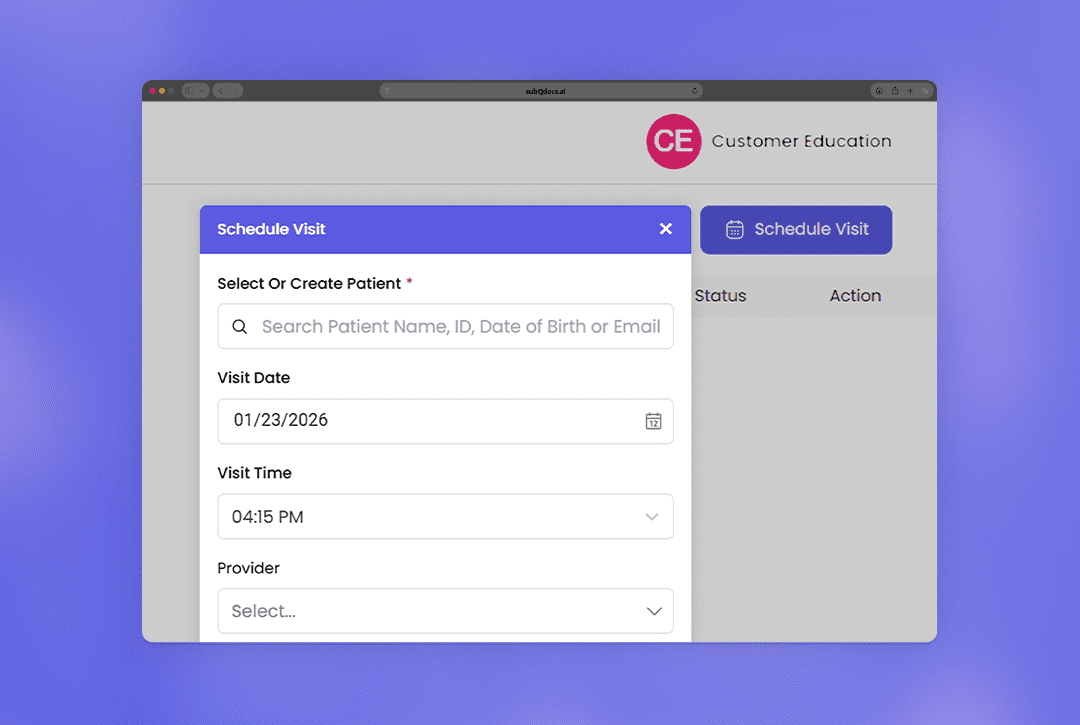
Option 2: Start a recording from the schedule
This option is ideal when the patient is already scheduled.
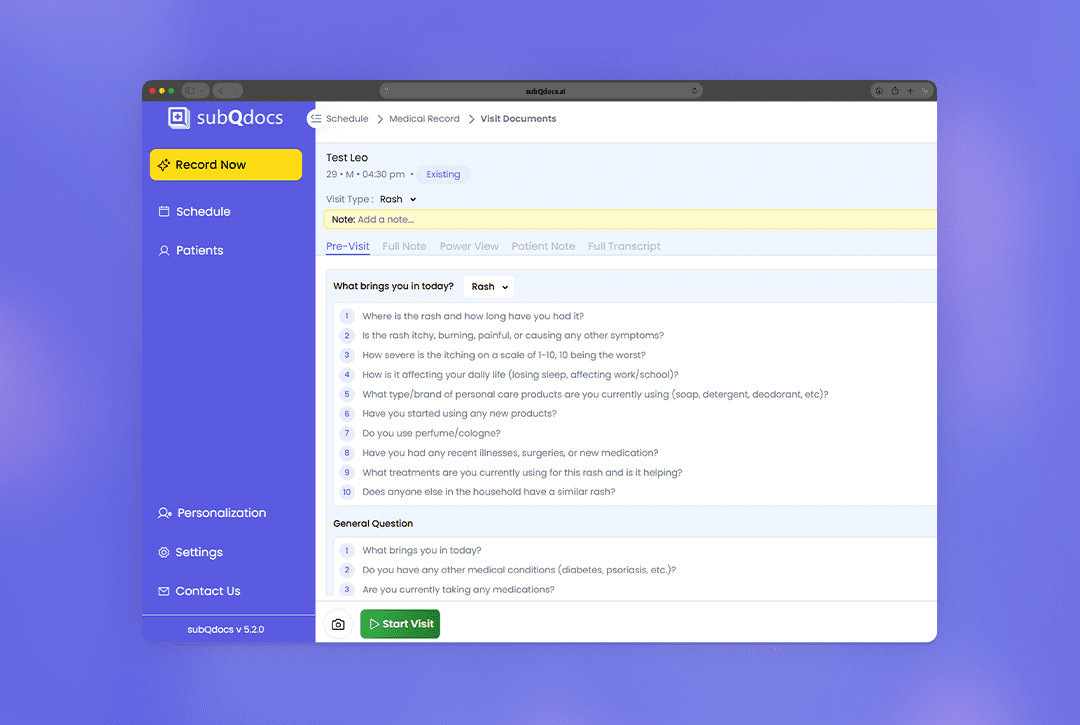
- Open the Schedule view.
- Select the patient’s appointment.
- Review the pre-visit information if available.
- Tap Start Visit to begin recording.
Option 3: Start a recording from a menu action
In some views, you may see a three-dot menu (⋯) next to a patient’s name.
- Locate the patient in a list (for example, Patients or Filters).
- Click the ⋯ menu.
- Select Start Recording or Start Visit.
Option 4: Start a recording from a patient record
If you are already reviewing a patient’s history, you can start a visit directly from their chart.
- Open the patient’s record.
- Review prior notes or history as needed.
- Tap Start Visit to begin the recording.
What happens after a recording starts
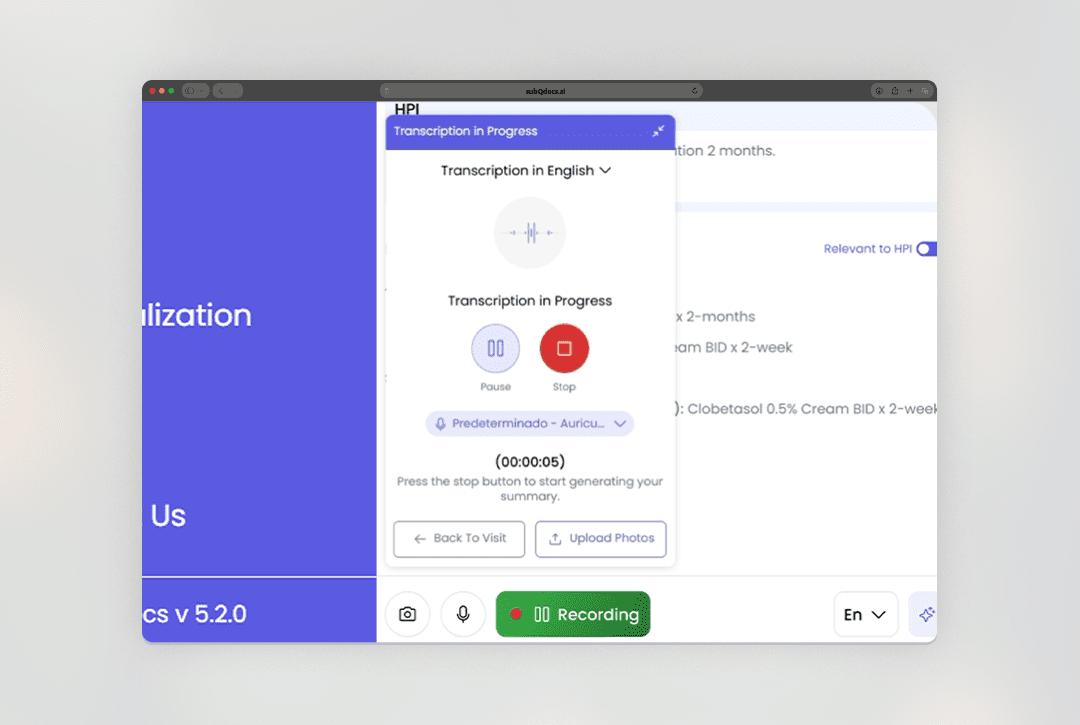
- Recording controls appear on screen while the visit is in progress.
- When the recording is stopped, subQdocs generates a draft note.
- Review, edit, and finalize the note before saving or pushing it to your system.
Helpful tips
- If you’re unsure which option to use, Record Now is the simplest place to start.
- Scheduled and unscheduled recordings both generate full notes.
- Confirm you’re logged into the correct Practice before starting a recording.
Thanks for using subQdocs to capture patient visits. Starting the recording cleanly helps ensure accurate, high-quality documentation.
Additional Resources
A dermatologist, a tech visionary, and an AI expert joined forces to redefine value creation and documentation efficiency in dermatology—unlocking smarter workflows and better patient care.


Reserve your spot
Please share a few details so we can plan the evening.