
Recording MA Intake Questions / Pre-Visit Preview
subQdocs is designed to be used across the entire patient visit—from the moment the medical assistant (MA) brings the patient into the room until the doctor finishes the exam and treatment.
We recommend that the MA runs subQdocs, asks pre-visit questions, and creates a summarized pre-visit note for the doctor.
Part 1: Using Pre-Visit Questions During Intake
1. Open the Visit and Go to the Pre-Visit Tab
- Log in to subQdocs.
- Start a visit.
- Once the visit is open, you will be on the Pre-Visit tab.
2. Select the Reason for the Visit
- In the Pre-Visit tab, choose the Reason for Visit (e.g., Evaluation of a skin lesion, Acne, Rash).
- The list of questions will automatically update based on the selected reason:
- Visit-specific questions appear at the top.
- General questions (asked for every visit) appear below.
- Later in this post, there are instructions on how to customize pre-visit questions.
3. Ask the Patient the Pre-Visit Questions
- The MA taps Start Visit.
- The MA asks the patient the questions shown in the Pre-Visit tab, capturing:
- Reason for visit
- Symptom details
- Relevant history
- Continue until all relevant questions have been covered.
4. Generate the Pre-Visit Summary (CC/HPI)
- After completing the questions, the MA taps Create CC/HPI (bottom-right corner).
- subQdocs generates:
- A Chief Complaint (CC)
- A History of Present Illness (HPI)
- This creates a concise pre-visit summary for the doctor to review before entering the room.
Part 2: Viewing the Pre-Visit Summary as the Doctor
- Once the MA has completed intake and tapped Create CC/HPI, subQdocs generates:
- The Chief Complaint (CC)
- The HPI generated from MA questions
- The pre-visit preview also contains a diagnosis timeline showing previous visits and key notes (e.g., “Previous visit on November 20 – summary of that visit”).
- Use this summary to quickly read in on the patient before entering the exam room.
Part 3: Personalizing Medical Assistant Questions (Web Only)
Note: Question personalization is available only in the web browser version of subQdocs, not on iPad or iPhone.
1. Open the Personalization Settings
- Log in to subQdocs in a web browser.
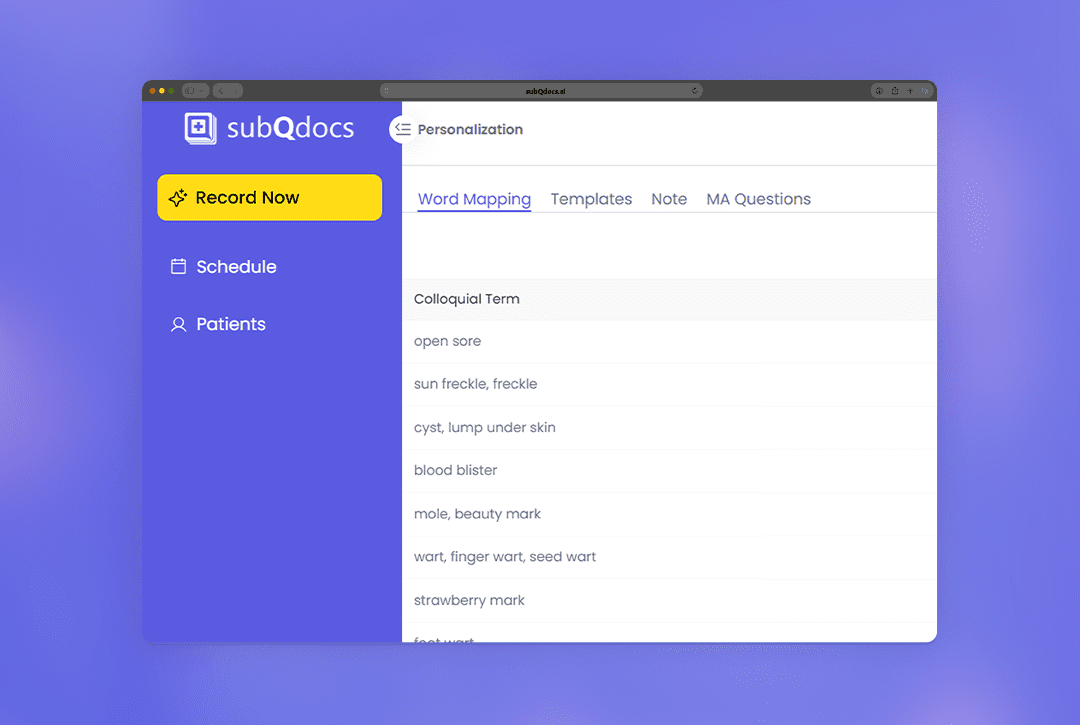
- Go to the Personalization settings (at the bottom of the left-side menu).
- Select the MA Questions tab.
2. Edit General Questions (Asked for Every Visit)
- In the General Questions section:
- Hover over a question to see options.
- For each question, you can:
- Edit the text.
- Delete the question.
- Scroll to the bottom to Add a New Question if needed.
- To revert back to the original defaults at any time, click Restore Default.
3. Edit Visit-Specific Questions
- In the Visit-Specific Questions section, you can:
- Toggle visit types on or off.
- Add new visit types if needed.
- Change the default visit type (e.g., from Follow-up to Rash).
- For each visit type:
- Hover over a question to edit or delete it.
- Scroll to the bottom to add a new question for that visit type.
Additional Resources
A dermatologist, a tech visionary, and an AI expert joined forces to redefine value creation and documentation efficiency in dermatology—unlocking smarter workflows and better patient care.


Reserve your spot
Saturday, March 28th
4pm To 7pm
Slate Hotel. 1250 Welton st.
Please share a few details so we can plan the evening.
My Details
+ Add a guest