Using Templates to Generate Structured Notes
Templates are enabled by default and automatically apply during recordings when specific keywords are detected. They help structure notes, reduce repetitive documentation, and make it easier to review and finalize visit notes.
How templates work
- Templates are triggered by keywords heard during a recording.
- Before applying, subQdocs validates the template against the full transcript to ensure it’s relevant.
- Multiple templates can be applied within a single visit, depending on what’s discussed.
- Patient-specific details captured or assumed by the template are highlighted to make review faster.
Reviewing applied templates in a note
When a template is applied, you’ll see an indicator at the top of the note showing which template was used.
From there, you can:
- Remove the applied template
- Replace it with a different template
- Add additional templates if multiple procedures or workflows apply
Understanding highlighted fields
Templates use visual cues to help you quickly review a note:
- Blue text indicates information that was either:
- Explicitly captured during the visit, or
- Filled using a default defined in the template
- Red text indicates required information that was not stated and has no default
- This is information that must be explicitly provided (for example, a procedure location)
These highlights make it easy for Providers or MAs to scan a note, make quick corrections, and finalize documentation.
Managing and customizing templates
Templates are managed on the web app only.
- Go to app.subqdocs.ai
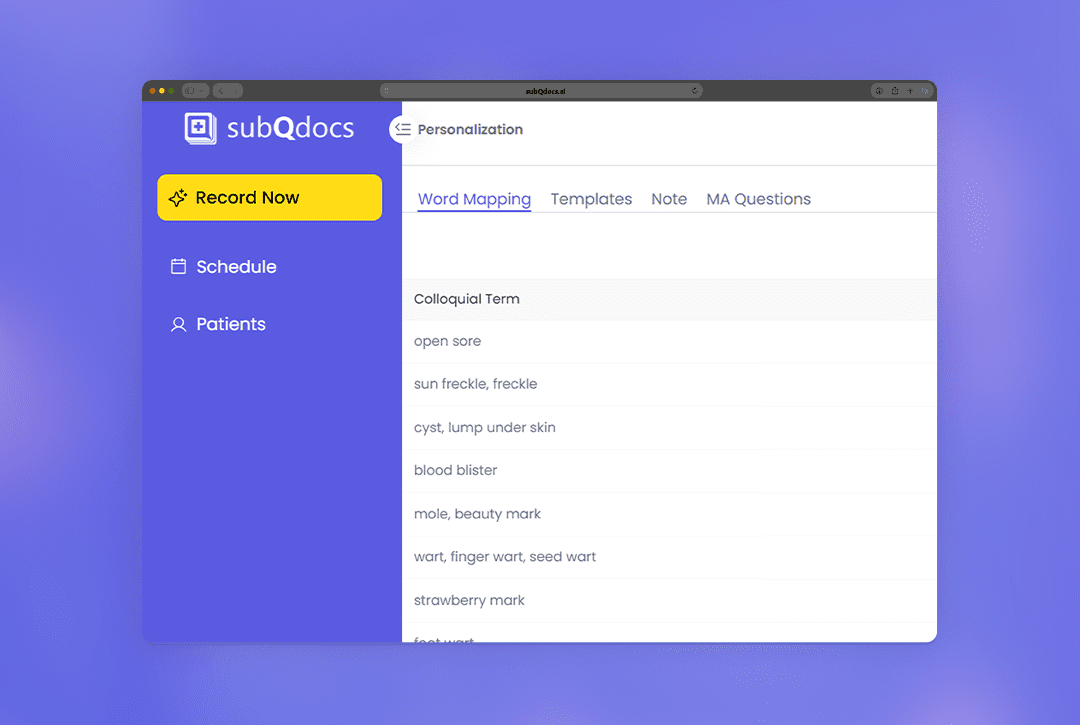
- Navigate to Personalization → Templates
- You’ll see a list of all available templates
Default templates cannot be edited directly. To customize one:
- Make a copy of the default template
- Edit the copied version to match your preferences
- Save your changes
Working with template fields and defaults
Templates use curly brackets to mark information the AI should learn from the visit, and a colon to define an optional default.
- Curly brackets capture information from the visit.
- Example:
{differential_diagnosis} - Meaning: If you say the differential diagnoses during the visit, subQdocs will populate this field.
- Example:
- Colon defaults provide a fallback value when something isn’t stated.
- Example:
{anesthetic_type:lidocaine} - Meaning: If you do not mention anesthetic type, the template will use
lidocaine. If you do mention it, what you say will override the default.
- Example:
Full example: {antiseptic_solution:hibiclens}
How to read it:
- If you say the antiseptic solution during the visit (for example, “we used alcohol”), subQdocs will fill the field with what you said.
- If you don’t say it, the template will use the default (
hibiclens).
When something looks unexpected
If a note doesn’t look the way you expect:
- Check which templates were applied first
- Review highlighted fields to see what was assumed versus what needs clarification
- Adjust or remove templates as needed
Share and improve templates
You’re encouraged to create your own templates and share templates you find helpful with the subQdocs team. Well-designed templates may be reviewed and added for broader community use.
Thanks for using templates to streamline your documentation. If you have questions, ideas, or examples you’d like to share, we’re always happy to hear from you.
Additional Resources
A dermatologist, a tech visionary, and an AI expert joined forces to redefine value creation and documentation efficiency in dermatology—unlocking smarter workflows and better patient care.


Reserve your spot
Please share a few details so we can plan the evening.