Sharing Patient Notes
This article explains how patient notes work in subQdocs and how you can share them with patients after a visit. Patient notes are designed to be clear, personalized, and easy for patients to access.
What a patient note is
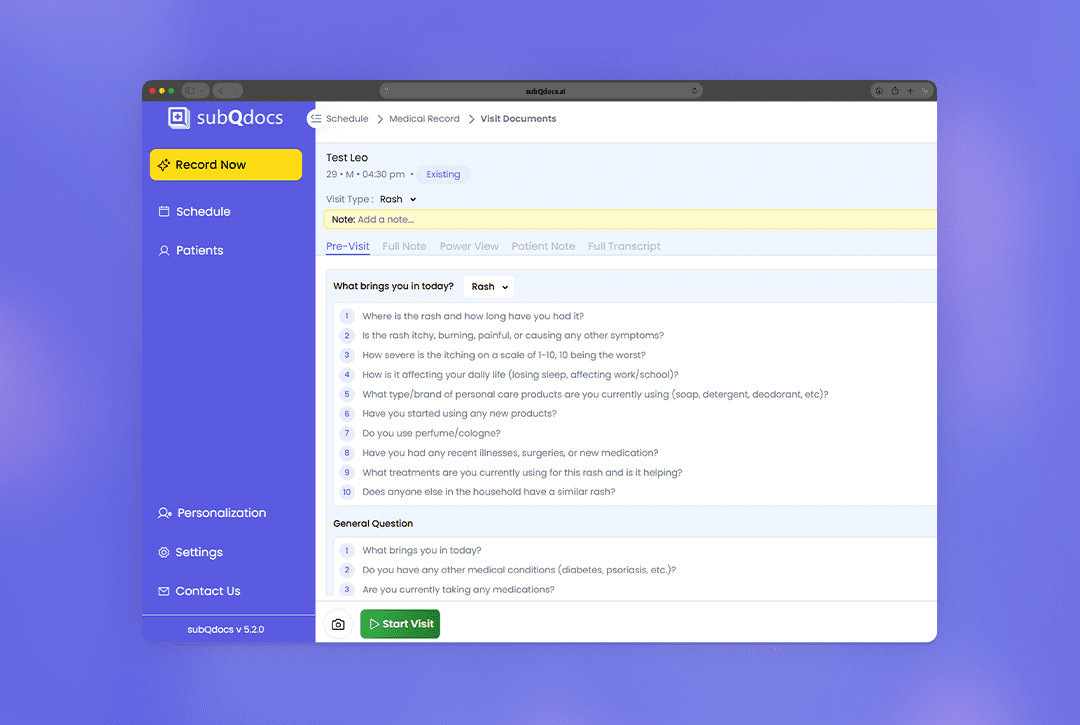
After a visit recording is completed, subQdocs generates a patient note shortly after the clinical note is created.
The patient note combines:
- What the AI knows about the procedure based on clinical context
- Any counseling or instructions you provided during the visit
The result is a patient-friendly summary that feels personalized rather than generic.
Where patient notes are available
Patient notes can be accessed and shared from both the web and the iPad.
Sharing a patient note
- Open the completed visit note.
- Select Share Patient Note.
- A QR code and share options will appear.
Ways to give the note to a patient
- QR code: Turn the screen toward the patient so they can scan it with their phone. This downloads a PDF for their records.
- Link: Copy the share link and send it through your SMS texting service or patient portal.
- Print: Download the PDF and print it to hand to the patient.
Personalizing patient notes
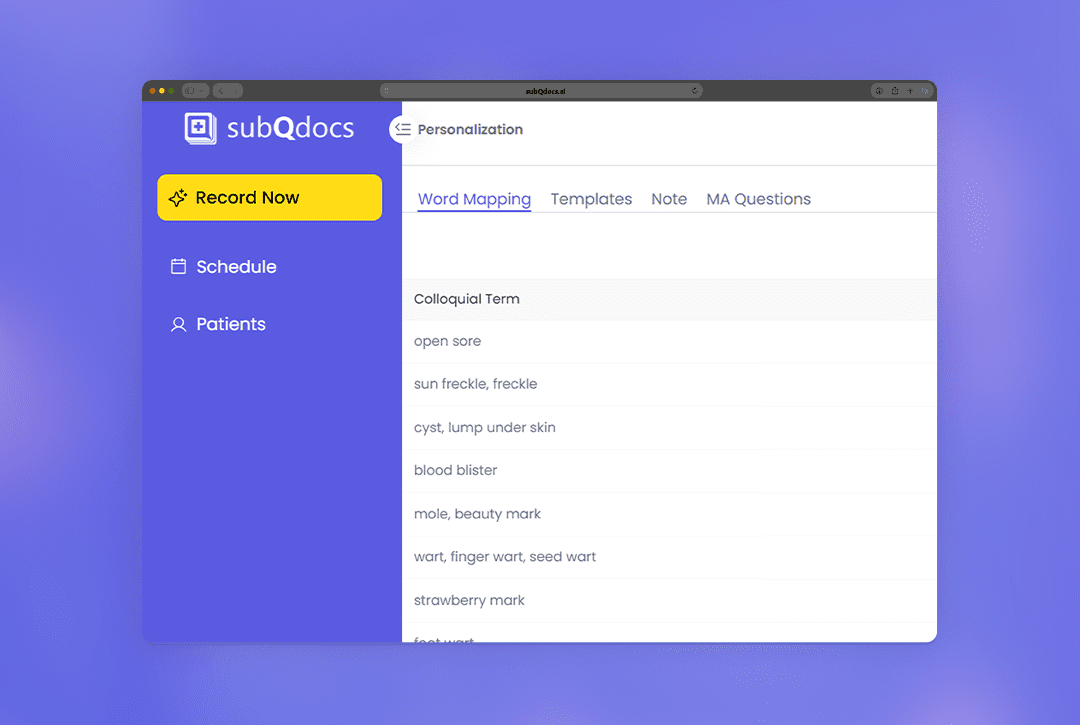
Patient notes can be customized to match your Practice’s tone and communication style. Personalization is managed on the web app only.
- Go to Personalization in the bottom left-hand corner.
- Select Note from the header.
- Choose Patient Note in the side bar.
From here, you can:
- Add general instructions that apply to all patient notes
- Control tone and formatting
- Customize individual sections of the patient note
Adding custom sections
You can add custom sections to patient notes, such as contact information or follow-up instructions.
- Custom sections apply to every patient note by default
- For example, many Practices add a “How to contact our office” section with phone numbers or URLs
Procedure-specific patient instructions
In addition to general patient note personalization, you can customize patient instructions at the procedure level.
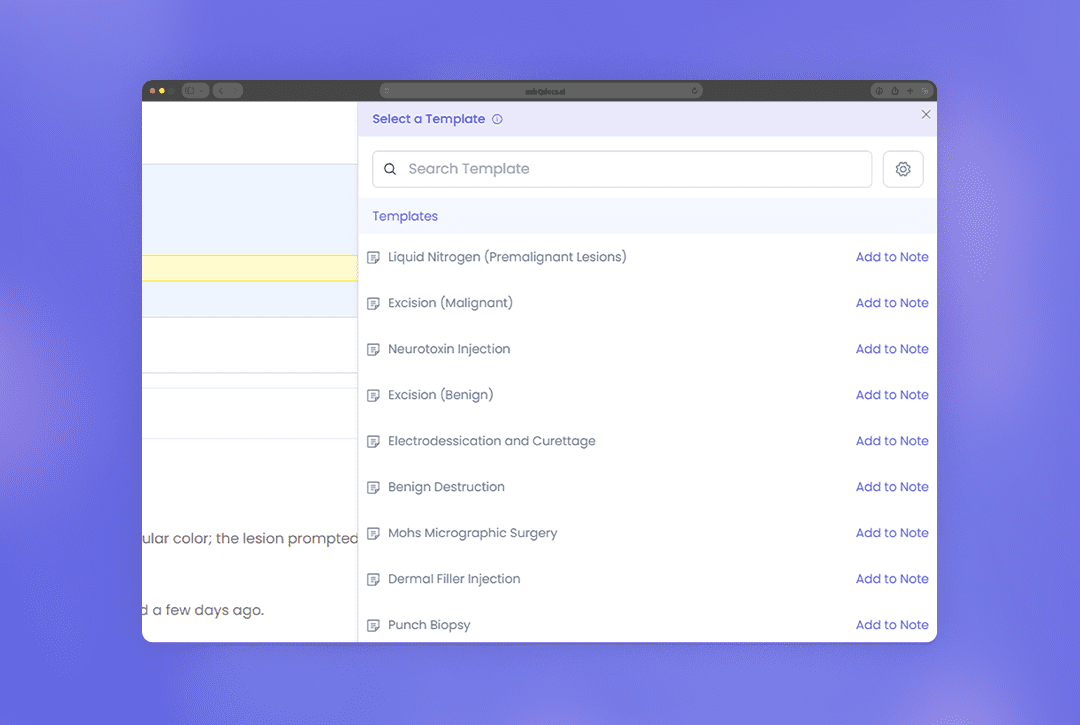
- Templates allow you to add procedure-specific guidance
- This is useful for instructions like wound care, activity restrictions, or symptoms to watch for
- These instructions are added automatically when the related procedure template is applied
This combination of general and procedure-specific personalization helps ensure patients receive consistent, clear guidance after every visit.
Thanks for using patient notes to extend care beyond the exam room. If you have questions or want help tailoring them to your workflow, reach out anytime.
Additional Resources
A dermatologist, a tech visionary, and an AI expert joined forces to redefine value creation and documentation efficiency in dermatology—unlocking smarter workflows and better patient care.


Reserve your spot
Please share a few details so we can plan the evening.