
Editing Notes After Recording
This article explains the different ways you can edit a note after a recording is complete. Whether you need to add more information, make quick corrections, or apply additional structure, subQdocs gives you several flexible options.
Option 1: Continue recording
If new information comes up after a note starts generating, you don’t need to start over.
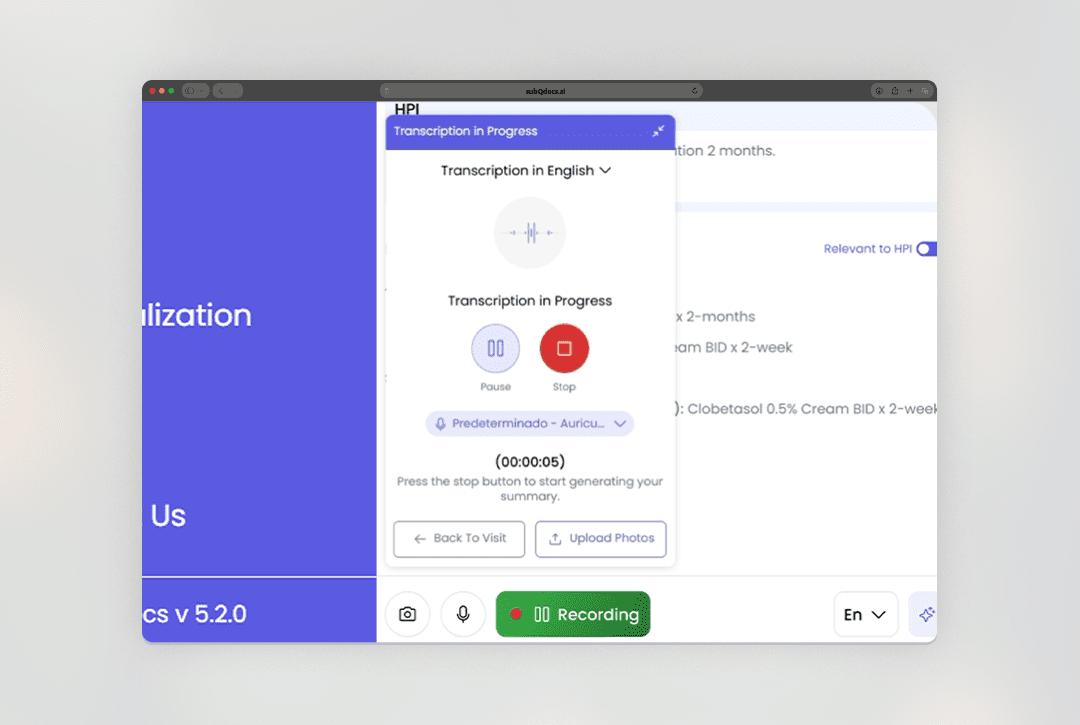
- Click Continue Recording.
- subQdocs will pause the current generation.
- Continue speaking to add the missing details.
- Stop the recording to regenerate the note using the full transcript.
This is especially useful when a patient mentions something important right after you thought the visit was finished.
Option 2: Edit sections manually
You can directly edit any section of the note using standard text editing.
- Click into a section and type your changes.
- Use basic formatting tools as needed.
- Use the copy icon to quickly copy a section for pasting elsewhere.
This works on both the web and the iPad.
Reordering and managing impressions
Within the Impression and Plan section, you have additional controls:
- Reorder impressions using drag and drop.
- Edit existing impressions inline.
- Use the + button to add another impression manually if needed.
Manual entry is available, but most Practices rely on templates for speed and consistency.
Option 3: Add content using templates
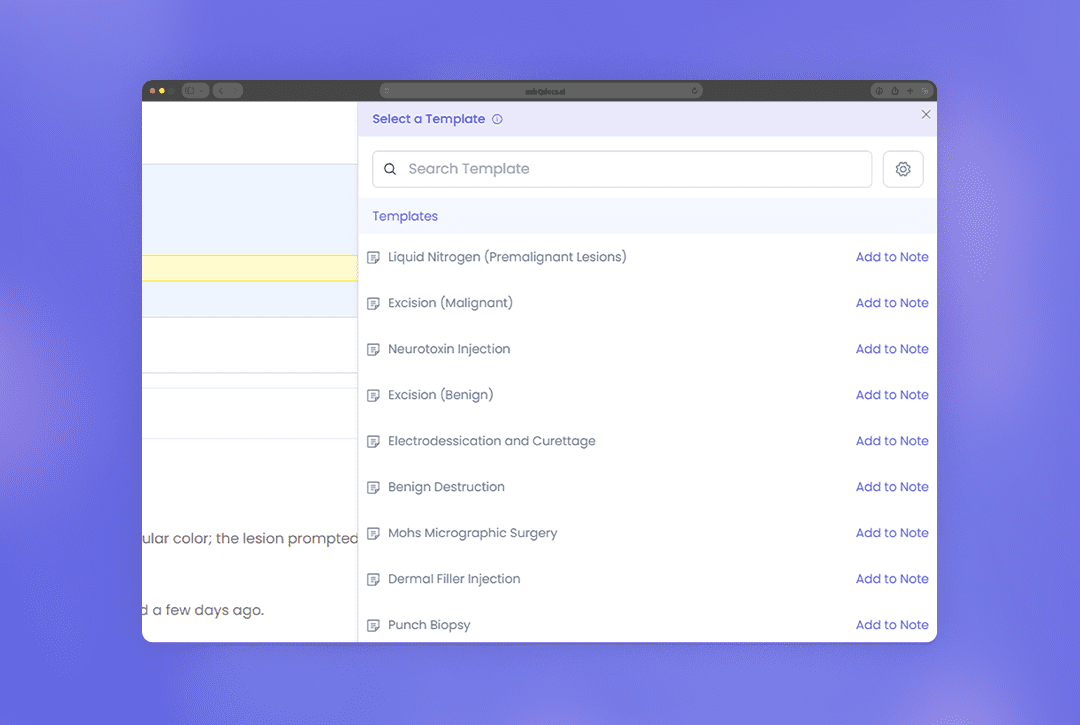
The most common way to add structured content is by applying additional templates.
- Open the Used Templates section.
- Select a procedure or template you want to add.
- Submit your changes.
The selected template is applied as a new section in the note.
- Red text highlights required information that wasn’t stated during the recording.
- Any details the AI could infer or apply defaults for are filled in automatically.
Option 4: Use Magic Edit
Magic Edit lets you make broader changes using AI instead of editing each section manually.
- Open Magic Edit.
- Describe what you want to change (for example, update measurements or locations).
- Submit the request.
Magic Edit updates the note wherever those details appear, helping you make consistent changes quickly.
Choosing the right approach
- Continue Recording is best when information was missed.
- Manual edits are ideal for small corrections.
- Templates are the fastest way to add structured clinical content.
- Magic Edit works well for broad updates across the note.
Thanks for using subQdocs to refine your notes. These tools are designed to keep editing fast, flexible, and aligned with how visits actually happen.
Additional Resources
A dermatologist, a tech visionary, and an AI expert joined forces to redefine value creation and documentation efficiency in dermatology—unlocking smarter workflows and better patient care.


Reserve your spot
Please share a few details so we can plan the evening.