
Microphone Management & Troubleshooting
This article explains how to check and manage microphone settings when using subQdocs on a laptop or desktop. Most recording issues are caused by microphone permissions or software settings, not hardware problems.
How to tell if subQdocs is hearing you
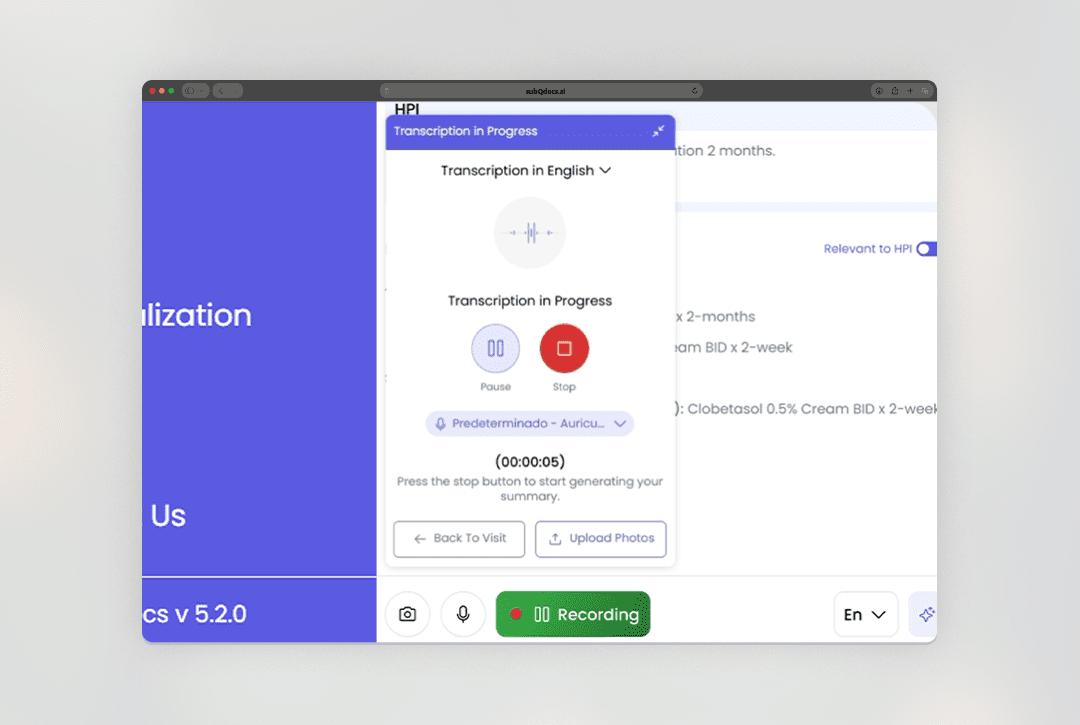
When a recording starts, you’ll see a small red audio indicator.
- If the indicator moves while you speak, audio is being captured.
- If it stays flat or inactive, subQdocs is not hearing any audio.
If a note generates with “Insufficient Information”, this usually means audio was not captured during the visit, often because of a mic permissions issue.
Check microphone permissions in your browser
subQdocs works best in Chrome, which is our recommended browser.
- Look at the address bar in Chrome.
- Click the microphone or site controls icon.
- Make sure microphone access is set to Allow.
If microphone access was previously denied:
- Reset the permission.
- Start a new recording.
- When prompted, allow microphone access.
Select the correct microphone
Chrome lets you choose which microphone subQdocs uses.
- Open the microphone permissions menu in Chrome.
- Select a microphone from the dropdown list.
- Speak and watch for the audio indicator to confirm input.
If you have multiple devices (for example, built-in mic, webcam mic, or headset), test each one to find the best option.
Advanced microphone settings (Windows)
If the browser settings look correct but audio still isn’t working, check your system settings.
- Press the Windows key.
- Type Sound and press Enter.
- Under Input, select the microphone you want to use.
- Set it as the default input device.
Sometimes Windows and Chrome are using different microphones. Aligning these usually resolves the issue.
Common tips
- Most microphone issues are software-related, not hardware failures.
- Laptops and desktops may list multiple microphones—verify the correct one is selected.
- Restarting Chrome after changing permissions can help.
If you’re still having trouble
If audio still isn’t being captured, contact our support team.
Email support@subQdocs.ai and we’ll help troubleshoot, including screen sharing if needed.
Thanks for taking the time to check your microphone setup. Clear audio is key to generating accurate, high-quality notes.
Additional Resources
A dermatologist, a tech visionary, and an AI expert joined forces to redefine value creation and documentation efficiency in dermatology—unlocking smarter workflows and better patient care.


Reserve your spot
Please share a few details so we can plan the evening.